Download Remind Me Later – Fast iCal Event Creator, Free Reminder App
Overview
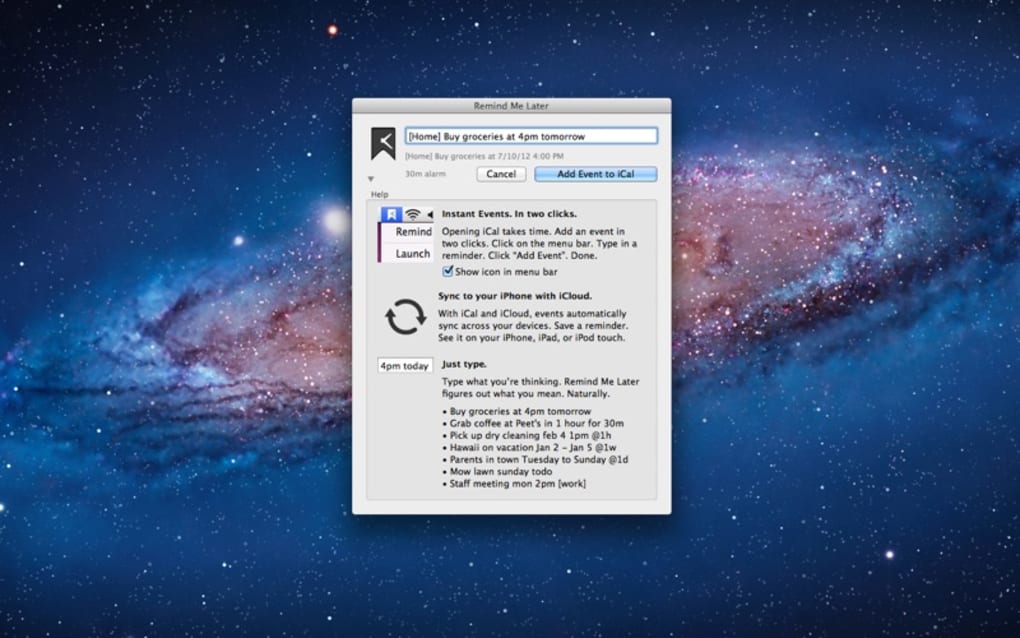
If you spend most of your day in front of a computer, ideas, meetings, or to‑dos pop up faster than you can type them into a notebook. Remind Me Later solves that problem with a single‑click workflow that adds events directly to your iCal calendar. The app lives in your menu bar (macOS) or system tray (Windows) and lets you capture a reminder without breaking focus.
No need to pull out a phone, open a separate note‑taking app, or lose a thought to the void. With a free, lightweight design, Remind Me Later offers a secure, instant way to “save for later” and keep your schedule in sync across all Apple devices via iCloud. Whether you’re a project manager juggling dozens of tasks, a developer tracking sprint deadlines, or a student noting class assignments, the two‑click process ensures nothing slips through the cracks.
The app also supports customizable default event lengths, automatic time‑zone handling, and optional notifications, making it a versatile addition to any productivity toolkit.
Key Features
- Two‑Click Event Creation: Open the app, type a title, hit Enter – the event appears instantly in iCal.
- Free & No Ads: Fully functional without a subscription or intrusive advertisements.
- Cross‑Platform Support: Native versions for macOS, Windows, iOS, and Android (via companion web hook).
- Custom Default Durations: Set a default length (15 min, 30 min, 1 hour, etc.) that applies to every new reminder.
- Smart Time‑Zone Conversion: The app detects your current time zone and adjusts events automatically.
- Secure iCloud Sync: All events are saved to your iCal calendar, which syncs securely through iCloud.
- Keyboard Shortcuts: Invoke the quick‑add window with a global hotkey for maximum speed.
- Notification Options: Choose whether to receive a pop‑up reminder before the event starts.
- Dark Mode Compatibility: Matches your system theme for a seamless visual experience.
- Lightweight Footprint: Consumes less than 20 MB of RAM and starts in under a second.
Installation, Usage & Compatibility
Getting started with Remind Me Later is deliberately simple. Follow these steps to install and begin creating instant iCal entries:
- Download the Installer: Visit the official website and click the Download for macOS or Download for Windows button. The file is signed with a valid Apple/Windows certificate, ensuring a secure installation.
- Run the Installer: On macOS, drag the app into your Applications folder. On Windows, run the .exe file and follow the wizard prompts. The installer automatically adds the necessary permissions to access your calendar.
- Grant Calendar Access: The first launch triggers a system dialog asking for permission to read and write to iCal (macOS) or Outlook/Windows Calendar (Windows). Click “Allow” to enable seamless event creation.
- Configure Preferences: Open the Preferences pane (click the gear icon). Here you can set default event length, enable or disable notifications, and assign a global hotkey (e.g., ⌘ + Shift + R on macOS, Ctrl + Alt + R on Windows).
- Start Adding Events: Click the menu‑bar icon or press your hotkey. A tiny input window appears; type your reminder title (e.g., “Call client at 3 PM”) and press Enter. The event is instantly added to your iCal calendar with the pre‑selected duration and time zone.
Supported Operating Systems
- macOS 10.14 Mojave and later
- Windows 10 (64‑bit) and Windows 11
- iOS 13+ (via a companion web‑hook that forwards to iCal)
- Android 8.0+ (via the same web‑hook)
Pros
- Instant two‑click entry saves time.
- Free with no hidden fees.
- Native integration with iCal ensures reliable syncing.
- Low memory usage keeps your system responsive.
- Customizable defaults adapt to different workflows.
Cons
- No native Android calendar integration (requires web‑hook).
- Lacks advanced task‑management features like subtasks.
- Only supports iCal/Apple Calendar as the primary destination.
FAQ & Final Thoughts
Is Remind Me Later really free?
Yes. The core app is completely free with no subscription or in‑app purchases. All features listed above are available to every user.
Can I use the app with Outlook or Google Calendar?
Remind Me Later writes directly to iCal/Apple Calendar. However, if your Outlook or Google Calendar syncs with iCal via iCloud or a third‑party bridge, the events will appear there as well.
What happens to my reminders if I uninstall the app?
All events are stored in your iCal calendar, not inside the app. Uninstalling Remind Me Later does not delete any previously created reminders.
Is my data secure?
Yes. The app only accesses your local calendar and never transmits data to external servers. For iOS/Android, the optional web‑hook uses HTTPS encryption.
How do I update Remind Me Later?
Updates are delivered automatically through the macOS App Store or Windows Update mechanism. You’ll receive a notification the moment a new version is available.
Conclusion
For anyone who spends their day typing away at a computer, the risk of forgetting a fleeting thought is all too real. Remind Me Later eliminates that risk with an ultra‑simple, two‑click workflow that writes straight to iCal, keeping your schedule accurate without interrupting your flow. The app’s free price tag, lightweight footprint, and secure local operation make it an attractive addition to any productivity stack. Whether you’re a busy professional, a freelancer, or a student, installing Remind Me Later is a quick win that pays dividends in saved time and mental clarity. Download Remind Me Later now and experience the ease of turning ideas into calendar events in a single breath.







